Add a live pollen map to your website or app
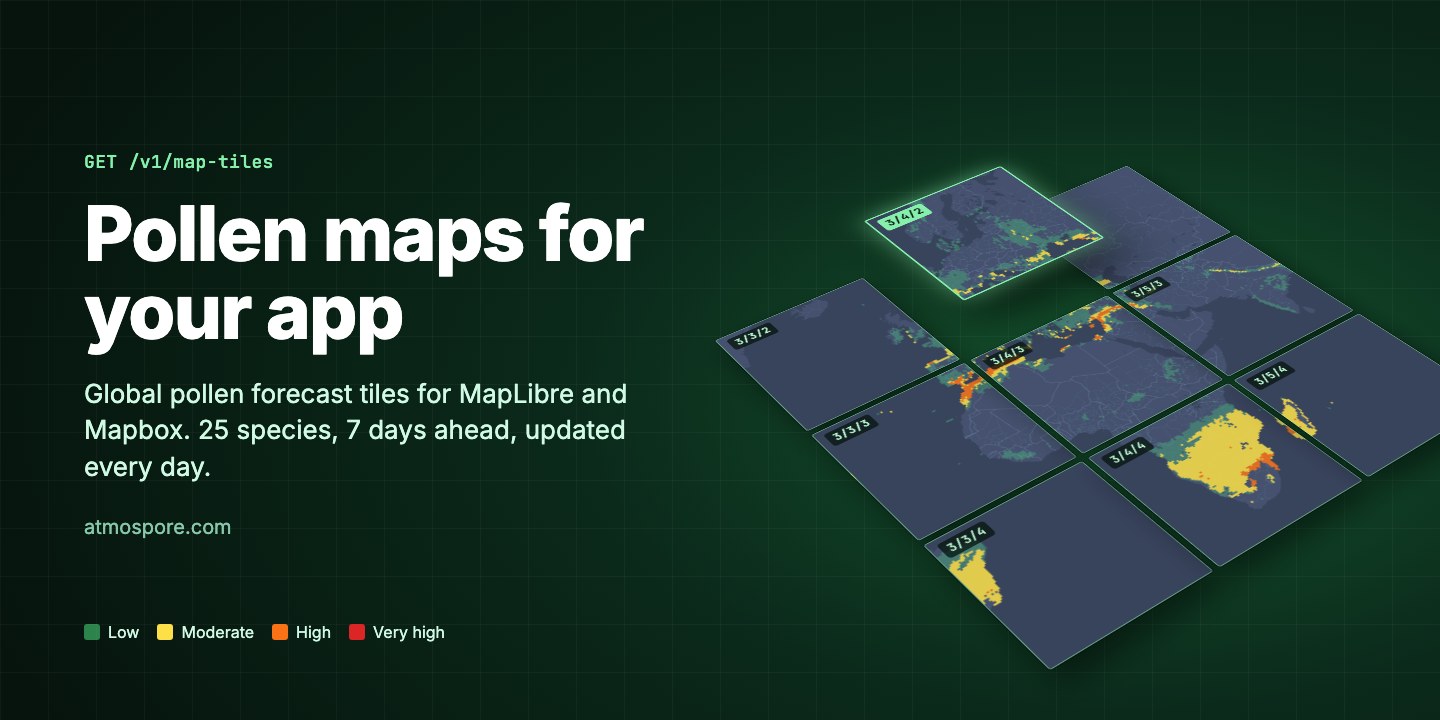
Atmospore's pollen forecast is now available as map tiles. With about 150 lines of code, including a tiny server, you can put a global, day-by-day pollen layer on your own map: in a web page, a dashboard or a mobile app.
This guide assumes no map experience. It explains what map tiles are and how access works, then builds a working map step by step with code you can copy. Try the live version first: switch between grass, trees and weeds, pick a day, and click anywhere on land.
What you get
One forecast grid covering every continent, in cells of 0.25° (about 28 km).
Birch, oak, ragweed, timothy and 21 more, plus combined totals for trees, grass and weeds. Every tile holds all of them.
The tiles contain numbers, not pictures. You choose the colours, the transparency and which species to show, on any base map you like.
Today plus the next six days, recalculated every day from the latest weather forecast.
Map tiles in two minutes
A web map is not one big picture. It is a mosaic of small squares called tiles. Zoomed all the way out, a single tile shows the whole world. Each step you zoom in splits every tile into four, so the map can show more detail while only ever loading what is on your screen.
Each tile's address is three numbers: the zoom level z, the column x (counted from the left) and the row y (counted from the top). A tile URL is a template with placeholders for those numbers:
You never work out these numbers yourself. You give the template to a map library such as MapLibre, and it fills in the numbers for the tiles on screen, downloads them and draws them. When you pan or zoom, it fetches the new ones.
Our tiles are vector tiles (the .mvt files). Instead of a finished image, each tile contains the forecast grid cells as shapes, with the pollen values attached as numbers. That is why you can recolour the map, switch species or read the exact value under the mouse, all in the browser and without downloading anything new.
How access works
Map tiles are included in paid plans. Your API key must stay secret, so it never goes into the web page. Instead, your server asks for the tile links, and the browser uses those:
calls GET /v1/map-tiles with your API key. That is one API request.
gets a small JSON answer (TileJSON) from your server, with a tile URL for each forecast day.
sends the tiles straight to the browser. Tile downloads are free and don't count against your quota.
The tile URLs are signed: they work on any website for about 6 hours (the expires field says exactly when) and are tied to your account, so there is nothing else to keep secret.
Build it: a pollen map in three steps
You need Node.js 18 or newer (or Python 3), an Atmospore API key on a paid plan, and a text editor. Make a new folder for two files: a tiny server and a web page.
Prefer to clone it? The complete, tested example is on GitHub: github.com/atmospore/examples
Step 1: a tiny backend
The server has one job: fetch the tile links with your key and hand them to the page. It remembers the answer for an hour, so even a busy page makes at most 24 API calls a day. Pick your language:
// server.mjs: run with  ATMOSPORE_API_KEY=your-key node server.mjs
import http from "node:http";
import { readFile } from "node:fs/promises";

let cached = null;
let fetchedAt = 0;

// Ask Atmospore for fresh tile links at most once an hour.
// Each call counts as one API request; the tiles themselves are free.
async function pollenTiles() {
  if (cached && Date.now() - fetchedAt < 60 * 60 * 1000) return cached;
  const res = await fetch("https://pollenapi.com/v1/map-tiles", {
    headers: { "x-api-key": process.env.ATMOSPORE_API_KEY },
  });
  if (!res.ok) throw new Error(`Atmospore answered ${res.status}`);
  cached = await res.json();
  fetchedAt = Date.now();
  return cached;
}

http.createServer(async (req, res) => {
  try {
    if (req.url === "/pollen-tiles") {
      res.setHeader("Content-Type", "application/json");
      res.end(JSON.stringify(await pollenTiles()));
    } else {
      res.setHeader("Content-Type", "text/html");
      res.end(await readFile("index.html"));
    }
  } catch (err) {
    res.statusCode = 502;
    res.end(String(err));
  }
}).listen(3000, () => console.log("Open http://localhost:3000"));
If you already have a backend, add the /pollen-tiles route to it instead. Nothing else in this guide changes.
Step 2: the map page
Save this as index.html in the same folder. It loads MapLibre GL JS, a free, open-source map library, and a free base map from OpenFreeMap, so you need no other accounts.
<!doctype html>
<html>
<head>
  <meta charset="utf-8">
  <meta name="viewport" content="width=device-width, initial-scale=1">
  <title>Pollen map</title>
  <link rel="stylesheet" href="https://unpkg.com/maplibre-gl@5/dist/maplibre-gl.css">
  <script src="https://unpkg.com/maplibre-gl@5/dist/maplibre-gl.js"></script>
  <style>
    html, body, #map { margin: 0; height: 100%; }
    #controls { position: absolute; top: 10px; left: 10px; z-index: 1;
                background: white; padding: 8px; border-radius: 8px; font: 14px sans-serif; }
  </style>
</head>
<body>
  <div id="controls">
    <select id="species">
      <option value="grass_tot">Grass</option>
      <option value="tree_tot">Trees</option>
      <option value="weed_tot">Weeds</option>
      <option value="birch">Birch</option>
    </select>
    <select id="day"></select>
  </div>
  <div id="map"></div>

  <script>
    // Risk levels in grains/m³: moderate, high and very high start at these values.
    const THRESHOLDS = {
      tree: [15, 90, 1500],
      grass: [5, 20, 200],
      weed: [10, 50, 500],
    };
    const CATEGORY = { grass_tot: "grass", tree_tot: "tree", weed_tot: "weed", birch: "tree" };

    // Colour each cell by the risk level of one species.
    function fillColor(species) {
      const [moderate, high, veryHigh] = THRESHOLDS[CATEGORY[species]];
      return [
        "step", ["coalesce", ["get", species], 0], // missing value = 0
        "rgba(0, 0, 0, 0)",   // low: transparent
        moderate, "#fde047",  // moderate: yellow
        high, "#f97316",      // high: orange
        veryHigh, "#dc2626",  // very high: red
      ];
    }

    const map = new maplibregl.Map({
      container: "map",
      style: "https://tiles.openfreemap.org/styles/positron", // free basemap, no key
      center: [10, 50],
      zoom: 3,
    });

    map.on("load", async () => {
      const pollen = await (await fetch("/pollen-tiles")).json();

      map.addSource("pollen", {
        type: "vector",
        tiles: pollen.tiles,       // today's {z}/{x}/{y} URL
        minzoom: pollen.minzoom,
        maxzoom: pollen.maxzoom,   // MapLibre zooms in past 5 on its own
        attribution: pollen.attribution,
      });

      // Draw the pollen under the place names so labels stay readable.
      const firstLabel = map.getStyle().layers.find((l) => l.type === "symbol");
      map.addLayer({
        id: "pollen",
        type: "fill",
        source: "pollen",
        "source-layer": "pollen",
        paint: {
          "fill-color": fillColor("grass_tot"),
          "fill-opacity": 0.6,
          "fill-antialias": false, // no hairlines between neighbouring cells
        },
      }, firstLabel?.id);

      // Pick a species: only the colours change, no new download.
      const speciesSelect = document.getElementById("species");
      speciesSelect.onchange = () =>
        map.setPaintProperty("pollen", "fill-color", fillColor(speciesSelect.value));

      // Pick a day: swap in that day's tile URL from steps[].
      const daySelect = document.getElementById("day");
      for (const s of pollen.steps) daySelect.add(new Option(s.step, s.step));
      daySelect.onchange = () => {
        const step = pollen.steps.find((s) => s.step === daySelect.value);
        map.getSource("pollen").setTiles(step.tiles);
      };

      // Click a cell to see the number behind the colour.
      map.on("click", "pollen", (e) => {
        const value = e.features[0].properties[speciesSelect.value] ?? 0;
        new maplibregl.Popup().setLngLat(e.lngLat)
          .setHTML(`${value.toFixed(0)} grains/m³`).addTo(map);
      });
    });
  </script>
</body>
</html>
Step 3: run it
Start the server with your API key:
ATMOSPORE_API_KEY=your-key node server.mjs
On Windows (PowerShell): $env:ATMOSPORE_API_KEY="your-key"; node server.mjs
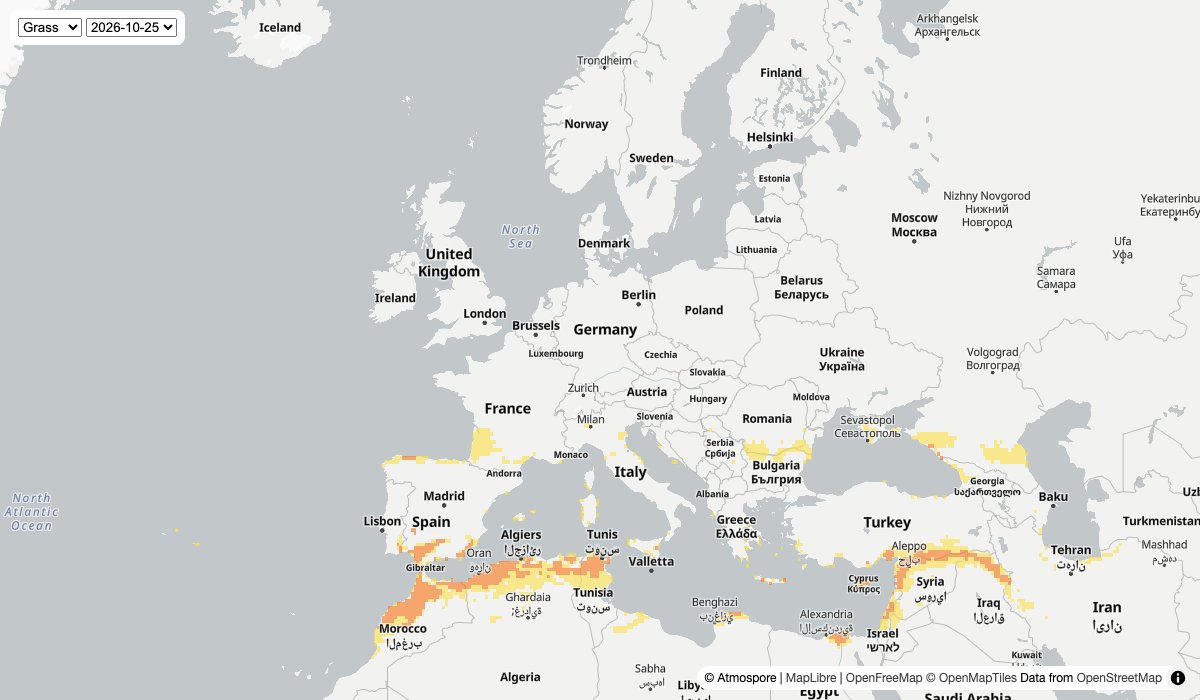
Open http://localhost:3000 in your browser. You should see Europe with today's grass pollen forecast. Use the menus to switch species and day, and click a coloured cell to see its value.
How the code works
The source and the layer
map.addSource says where the data comes from: the tile URL template from your server, and the zoom range 0–5 that tiles exist for. Zoom in past 5 and MapLibre keeps enlarging the zoom 5 tiles, so you can still zoom right down to street level. map.addLayer says how to draw it: "source-layer": "pollen" is the name of the data inside each tile, and type "fill" paints every forecast cell as a coloured square. The layer goes in before the first label layer, so place names stay readable on top.
Colouring by risk level
Each cell holds a value in grains per cubic metre of air for every species. The step expression in fillColor turns that number into a colour, using the same risk levels as our API and website:
| Pollen | Moderate | High | Very high |
|---|---|---|---|
| Trees | ≥ 15 | ≥ 90 | ≥ 1500 |
| Grass | ≥ 5 | ≥ 20 | ≥ 200 |
| Weeds | ≥ 10 | ≥ 50 | ≥ 500 |
Values in grains/m³. Cells below the moderate level are left transparent.
If a cell has no pollen of a species, that value is left out entirely, which keeps the tiles small. That is why the expression starts with coalesce(…, 0): a missing value counts as zero. Change the colours, add a pale colour for low levels or use your own thresholds; it's all in this one function.
Switching species and days
Every tile already holds every species, so changing species only swaps the colour rule with setPaintProperty and downloads nothing. Each forecast day has its own tile URL in the steps list your server passes on; setTiles swaps it in and MapLibre fetches that day's tiles. Neither needs a new call to the Atmospore API.
Reading a value
map.on("click", "pollen", …) gives you the cell under the mouse, with all its values in features[0].properties. The same idea works for tooltips, or for a side panel that lists every species at the place someone clicked.
Keeping the map fresh
We publish a new forecast every day, and the tile links expire after about 6 hours. The backend above handles both: it fetches new links every hour, and within the same hour Atmospore returns identical URLs, so browsers keep their cached tiles.
If people keep your page open for hours, ask your backend for the links again now and then (once an hour is plenty) and pass the new URL to setTiles. Each /v1/map-tiles call counts as one API request; tile downloads never count.
Using another map library
- Mapbox GL JS: The code is the same: replace
maplibreglwithmapboxgland set your Mapbox access token. Our tiles follow the Mapbox Vector Tile standard. - Leaflet: Leaflet only draws image tiles by itself. Add the
Leaflet.VectorGridplugin, give it the tile URL template, and style the"pollen"layer with a function that returns a colour for each cell. - OpenLayers: Use a VectorTile layer with a VectorTile source, the MVT format and the tile URL template, plus a style function for the colours.
- iOS and Android: MapLibre Native and the Mapbox Maps SDKs read the same TileJSON and the same style rules, so the colour expression from this guide works there too.
Good to know
How detailed is the data?
The forecast grid is 0.25° (about 28 km at the equator, narrower towards the poles). Tiles exist for zoom 0–5; zooming further enlarges the zoom 5 tiles, so at city level you will see clear squares. That is the real resolution of the forecast.
Why do cells look bigger when zoomed out?
At zoom 0–2, neighbouring cells are combined into 2°, 1° and 0.5° cells to keep the world view light. Each combined cell takes the highest value inside it, so pollen hotspots never disappear when you zoom out.
Which values are in each tile?
One value per species, named as in the rest of the API (birch, oak, timothy, ambrosia and so on), plus the totals tree_tot, grass_tot and weed_tot. The vector_layers field in the /v1/map-tiles answer lists them all, and the API docs have the full reference.
Why are some values missing?
A species with no pollen in a cell is left out of that cell to keep the tiles small, so treat a missing value as 0. The open ocean has no cells, and tiles that would be all ocean don't exist: the server answers 404, and MapLibre simply draws nothing there.
What counts against my quota?
Only calls to /v1/map-tiles, one request each. Tile downloads are free and unlimited. With the hourly cache from this guide, that's at most 24 requests a day, however many people use your map.
Can I use the tiles on my own domain and in apps?
Yes, the tiles load from any website or app. Keep the API key on your server, and show the attribution: "© Atmospore" comes with the TileJSON, and MapLibre displays it automatically.
Put pollen on your map
Map tiles are included in every paid plan. Get a key, follow the three steps above, and you'll have a live pollen map running in minutes.